🔔 What is a Push Notification Template?
A Push Notification Template is a ready-made message format you create in Lets Notify to send consistent, branded, and engaging notifications to your subscribers. Instead of writing a new message every time, you design a template once and reuse it whenever needed.🧩 What does it include?
A push notification template usually contains:- 🏷️ Title → Short headline (grabs attention)
- 📝 Message → Brief content or offer details
- 🔗 Redirecting URL → Where users land when they click
- 🖼 Icons / Images → For brand identity or promotions
- 🔘 Buttons → Call-to-action links (optional)
🎯 Why use templates?
- ⚡ Save time → No need to rewrite notifications from scratch
- 🎨 Maintain consistency → Keep branding uniform across messages
- 📈 Boost engagement → Use tested templates that perform well
- 🌍 Personalization → Quickly adapt templates for campaigns or seasonal offers
📝 Example:
- Title: 🎉 Big Sale is Live!
- Message: Get up to 50% OFF — only for the next 24 hours!
- URL: https://yourstore.com/sale
- Button: [Shop Now]
📄 Templates — Step-by-step Guide
Use the Templates page to create reusable push notification blueprints (Welcome messages, promos, alerts) you can quickly plug into campaigns.1️⃣ Open the Templates page
- From the left sidebar, click 📑 Templates.
- If this is your first template, you’ll see the empty state with a big ➕ Create button in the center and another at the top-right.
2️⃣ Create a new template
- Click ➕ Create.
- A New Template form will open.
Screenshot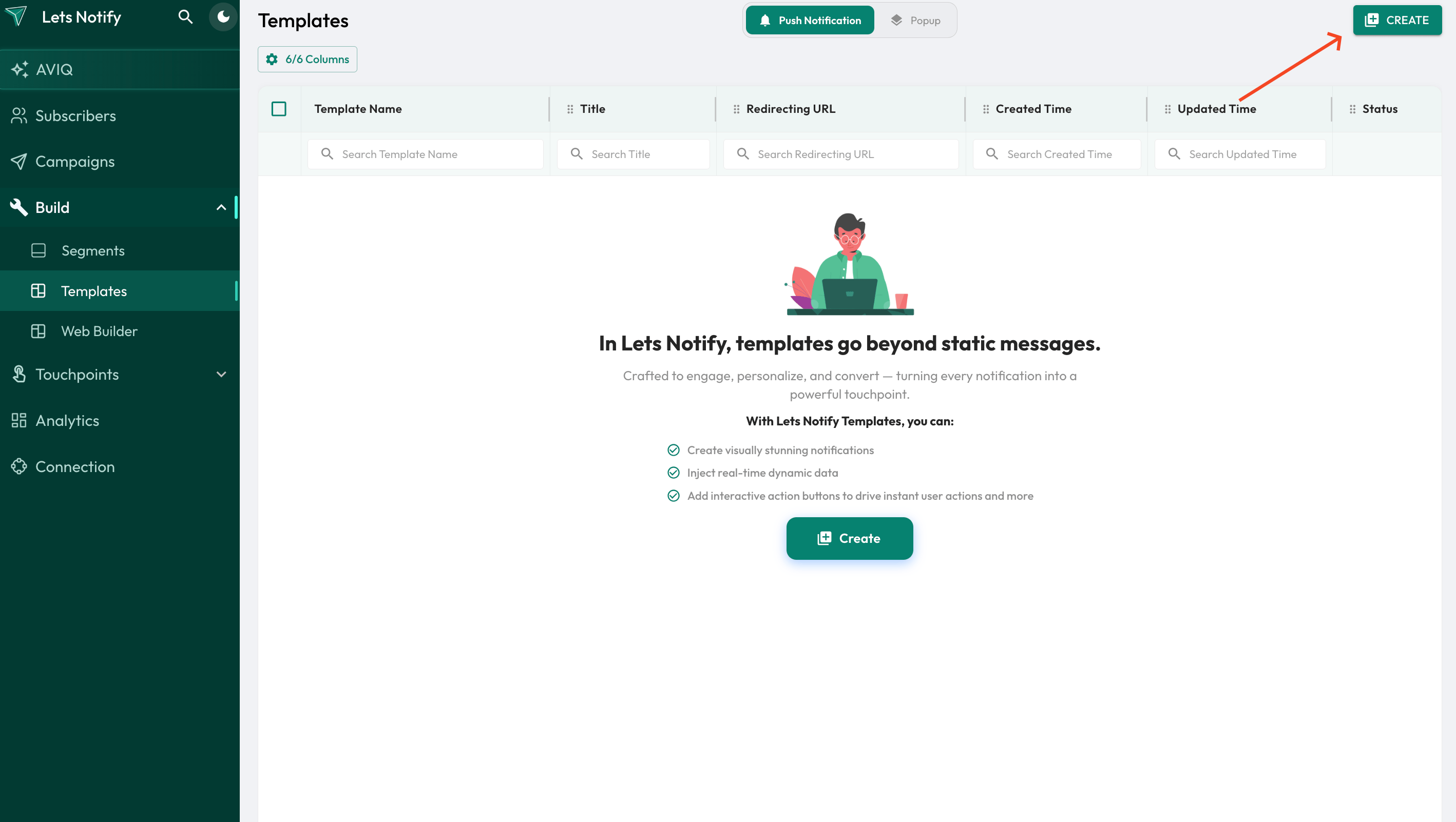
3️⃣ Fill in the template form (field-by-field)
- 📝 Template Name → Internal name (e.g., Welcome - New Subscriber).
- 🏷️ Title → Short headline shown to users (e.g., 🎉 Thanks for joining!).
- 🔗 Redirecting URL → Full link (with https://) where users land after clicking.
- 💬 Message → Short body text (1–2 lines, action-oriented).
- 🖼️ Upload Notification Icon → Brand logo/icon (📌 < 1 MB, recommended 192×192 px).
- 🖼️ Upload Banner Image (optional) → Larger banner (📌 < 1 MB, recommended 800×400 or 1024×512 px).
- 🔘 Buttons (optional) → Add up to 2 CTAs (e.g., 🛒 Shop Now, 📖 Learn More).
- ✅ Status → Toggle ON (active) or OFF (saved as draft).
4️⃣ Preview and save
- 👁️ Click Preview to see how your notification looks.
- 💾 Hit Save when done.
5️⃣ Manage templates (Edit / Delete)
- From the list view:
- ✏️ Edit → Click template row or menu.
- 🗑️ Delete → Remove permanently.
- 🔄 Activate / Deactivate → Switch status ON/OFF anytime.
6️⃣ Use a template in a campaign
- Go to 📢 Campaigns > Create Campaign.
- Select your saved Template to auto-fill Title, Message, Images, Buttons, and URL.
- Adjust targeting 🎯, schedule ⏰, and send 🚀.
✅ Best practices
- ✨ Keep titles short: ~30–50 characters.
- 📝 Message length: 1–2 short sentences (under 120 chars).
- 🖼️ Icon: < 1 MB, 192×192 px.
- 🖼️ Banner: < 1 MB, 800×400 or 1024×512 px.
- 🔘 Buttons: 1–2 clear CTAs.
- 💡 Tone: Friendly, concise, brand-matching.
- ⏰ Timing: Welcome = instant; promos = high-engagement hours.
- 📊 Tracking: Add UTM links for analytics.
🛠 Troubleshooting
- ⚠️ Save fails → Check file < 1 MB & PNG/JPG.
- 👁️ Preview missing image → Re-upload and save.
- 🚫 Template not visible in Campaigns → Ensure Status = ON.
Screenshot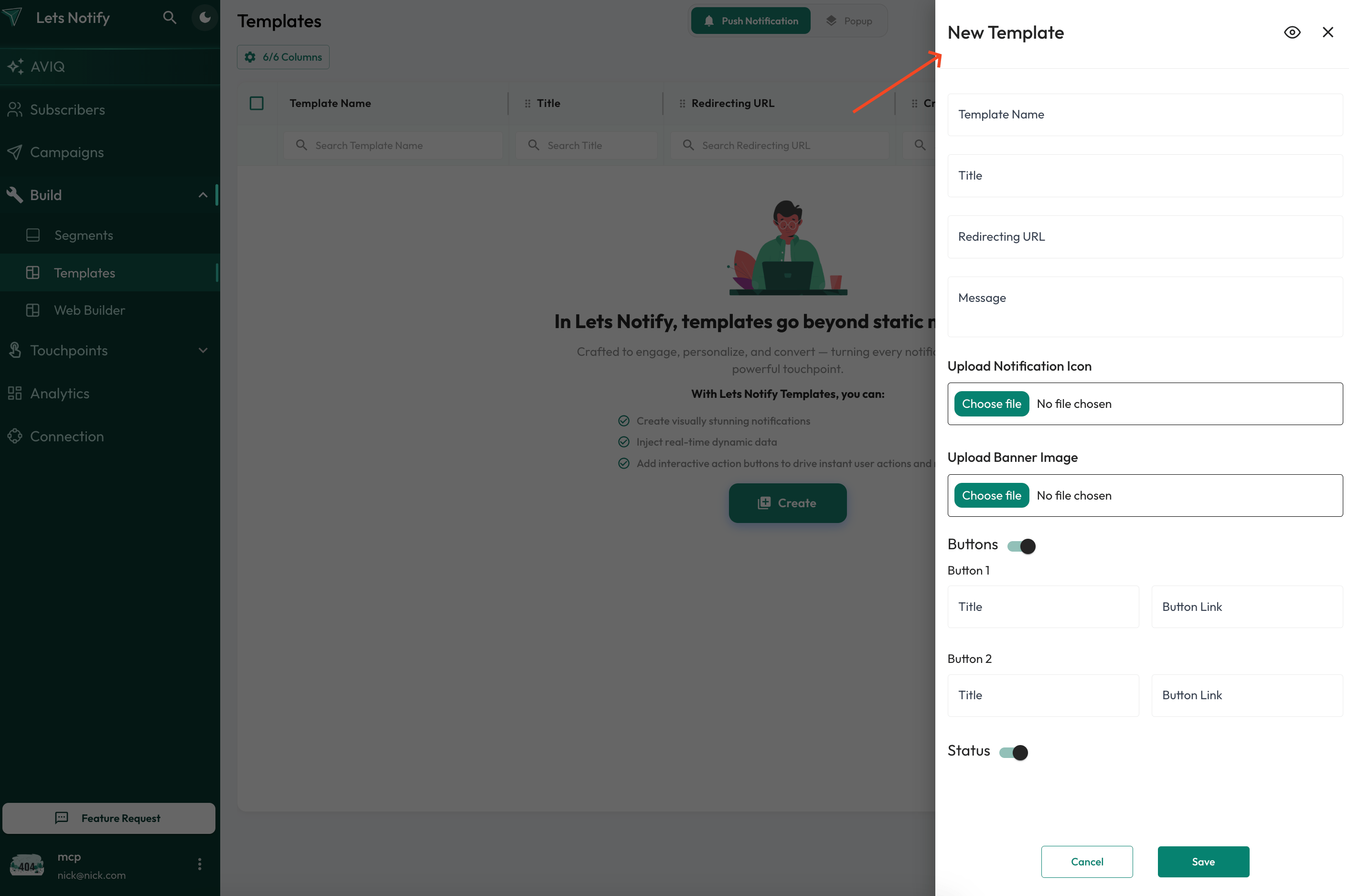
✨ Example templates
- 🔥 Flash Sale → Title: ⚡ 24hr Flash Sale, Message: Up to 50% off. Tap to shop now!, Button: 🛒 Shop Now.
- 📰 New Article Alert → Title: 📝 New Post: SEO Tips, Message: Read the latest guide — 5 mins read.