📢 What is a Campaign in Lets Notify?
In Lets Notify, a Campaign is a web push notification you send to your subscribers’ browsers. It’s how you communicate updates, offers, or alerts directly to users, even when they are not on your website.🚀 What a Campaign Does
- Sends push notifications to subscribers on desktop or mobile browsers.
- Can be sent to all subscribers or a specific segment 🎯 (e.g., “Cart Abandoners” or “New Signups”).
- Tracks delivery, clicks, and engagement so you can measure effectiveness.
🛠️ Types of Campaigns in Lets Notify
- One-time Campaigns ⏱️
- Send a single notification (e.g., product launch, flash sale).
- Recurring Campaigns 🔁 (if enabled)
- Send notifications at regular intervals (e.g., daily deals, weekly tips).
- Automated / Triggered Campaigns 🤖
- Send notifications automatically based on user behavior or actions (e.g., “Send when someone abandons cart”).
📢 How to Create a Campaign in Lets Notify
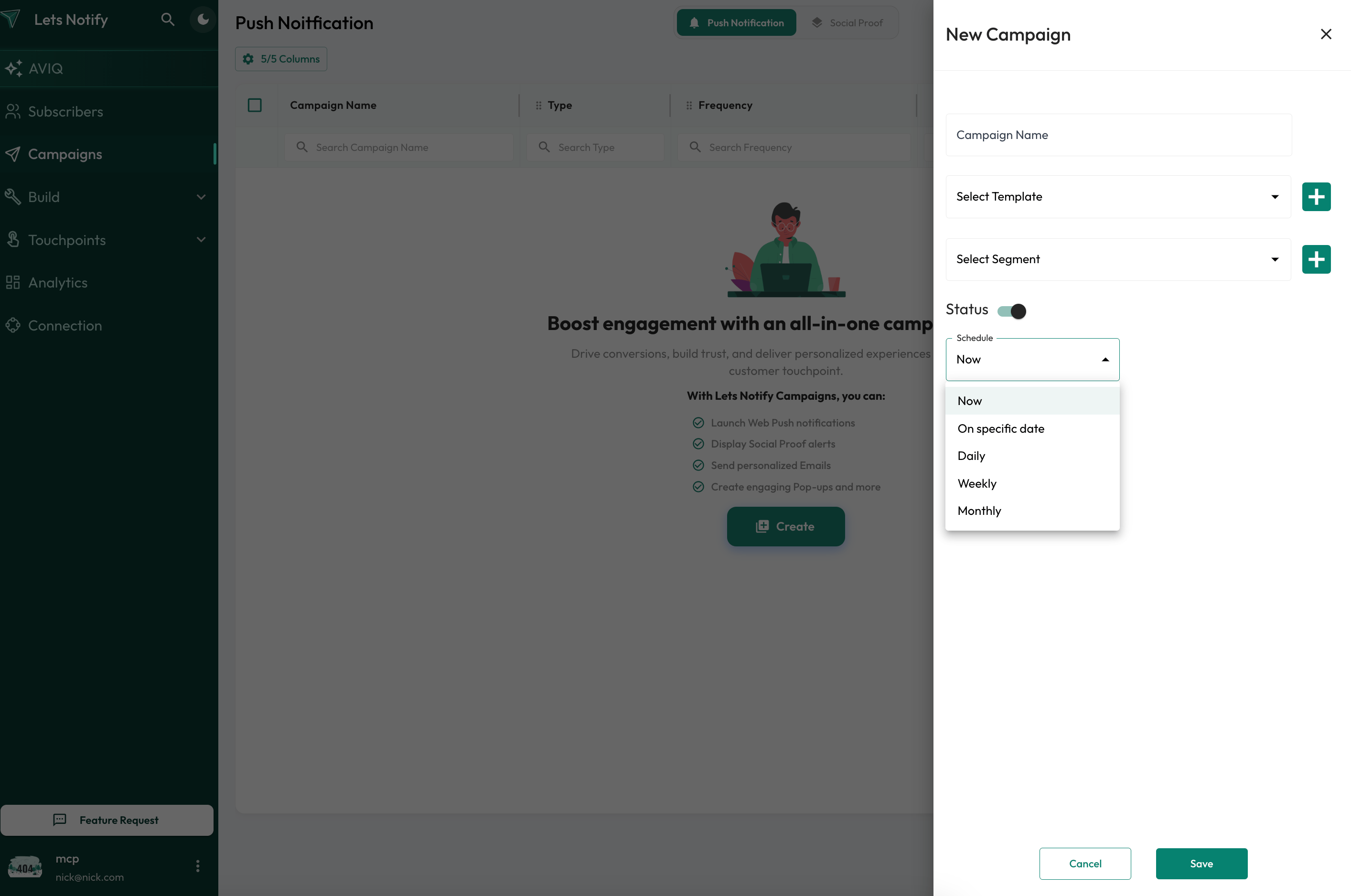
A campaign in Lets Notify is a web push notification you send to your subscribers’ browsers. Follow the steps below to create and schedule one.✨ Steps to Create a Campaign
- Go to Campaigns 📂
- From the dashboard, navigate to the Campaigns section.
- Click on Create Campaign.
- Enter Campaign Name 🏷️
- Type a name for your campaign.
- Example: Flash Sale Alert, New Blog Update.
- Select Template 🖼️
- Choose an existing notification template from the dropdown.
- Or click the ➕ icon to create a new template.
- Select Segment 👥
- Pick a subscriber segment to target.
- Example: All Subscribers, Cart Abandoners, Premium Users.
- You can also click the ➕ icon to create a new segment.
- Set Status 🔘
- Toggle the status ON to activate the campaign.
- Choose Schedule ⏰
- Now → Send immediately.
- On specific date → Schedule for a particular day & time.
- Daily → Repeat every day at the chosen time.
- Weekly → Repeat on selected days of the week.
- Monthly → Repeat on selected dates each month.
- Set the Date and Time: ⏰ Pick a date and time for the campaign to go out.
- Set the Subscriber Time Zone: 🌐 Select the right time zone for your subscribers.
- Save the Campaign 💾
- Click Save to finalize.
- If scheduled, the campaign will run automatically at the set time.
- If set to Now, the push notification will be sent instantly.
Screenshot