
🎉 What is a Welcome Template?
A Welcome Template is the very first push notification your subscribers receive right after they allow notifications on your website. Think of it as a warm greeting + confirmation message 💌 that reassures users they’ve successfully subscribed.🔑 Why is it important?
- 🤝 Builds trust → shows your brand is active and responsive.
- 🎯 Sets the tone → creates the first impression of your notifications.
- 📢 Engages instantly → keeps users excited about receiving future updates.
📝 Example of a Welcome Template
- Title: 🎉 Thanks for Subscribing!
- Message: You’re now part of our community — get ready for exciting updates and exclusive alerts 🚀
- Icon: Your brand logo or a friendly image
🎉 How to Create a Welcome Template in Lets Notify
A Welcome Template is the first push notification your subscribers receive after opting in. Here’s how to set it up:Let’s Dive into Creating a Custom Prompt
- 👉 Go to the Connections page.
- 🔍 Click on the Enlarge button for the connection you want to edit.
- 🛠 Navigate to the Welcome Template tab (it’s the 3rd tab).
Screenshot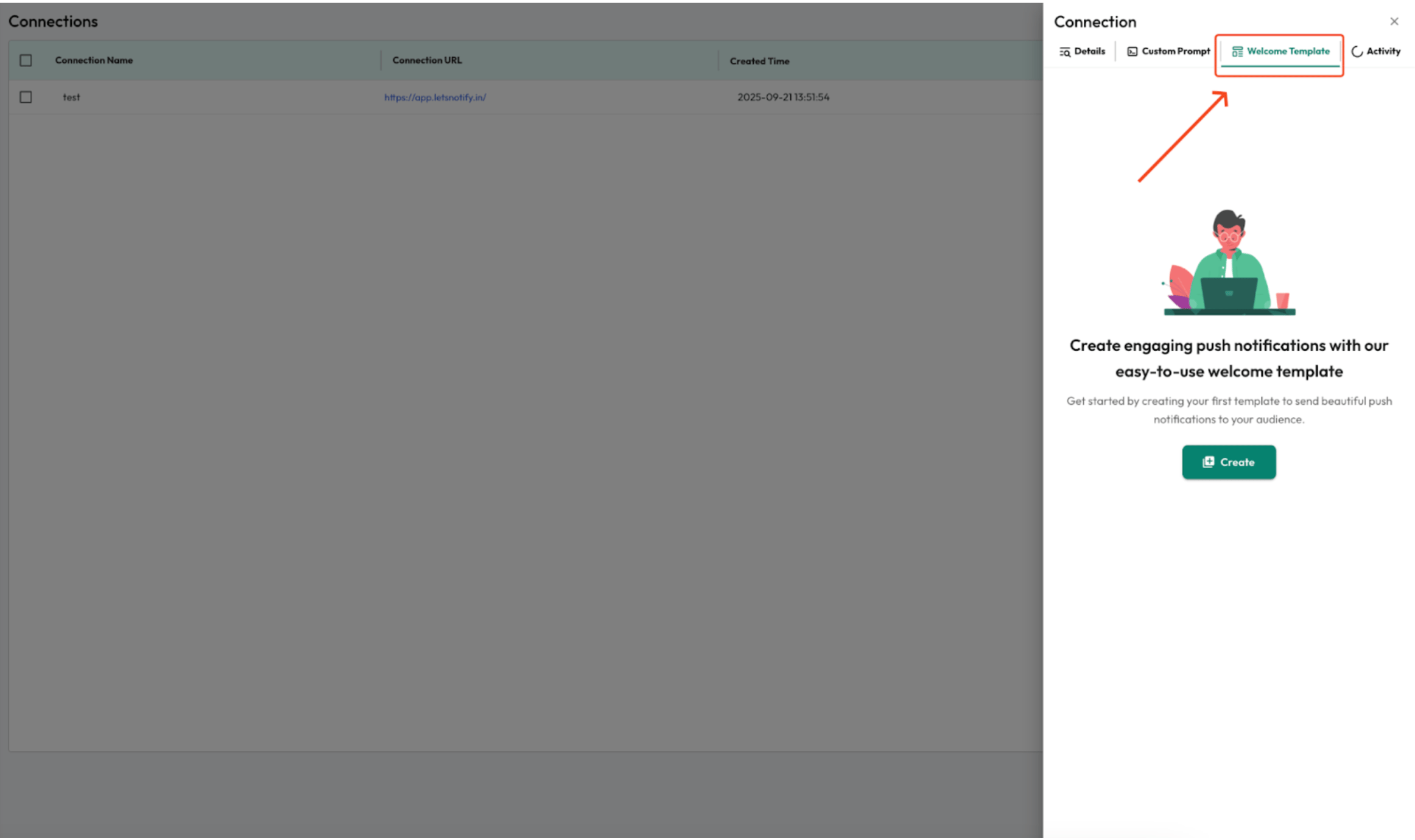
1️⃣ Add Basic Information
- 🏷️ Template Name → Give your template a name (for internal use, e.g., Welcome Notification).
- ✨ Title → The headline of your notification (e.g., “🎉 Thanks for Subscribing!”).
- 🔗 Redirecting URL → Add the link where users will land when they click the notification (e.g., your homepage or offers page).
- 📝 Message → Write a short, engaging message (e.g., “You’re now part of our community. Get ready for exciting updates 🚀”).
2️⃣ Upload Visuals
- 🖼 Upload Notification Icon → Add your logo or a recognizable icon for brand identity.
- 📌 Upload Banner Image → Optional, but recommended for a richer look (e.g., product image, greeting banner).
3️⃣ Configure Buttons (Optional)
If you want interactive call-to-actions inside your notification:- 🔘 Button 1
- Title (e.g., Visit Website)
- Button Link (e.g., https://yourwebsite.com)
- 🔘 Button 2
- Title (e.g., View Offers)
- Button Link (e.g.,https://yourwebsite.com/offers )
4️⃣ Set Status
- ✅ Turn the Status Toggle ON to activate the template.
5️⃣ Save Template
- 💾 Click Save to store your Welcome Template.
- 🎉 Done! Every new subscriber will now instantly receive your welcome notification.
Screenshot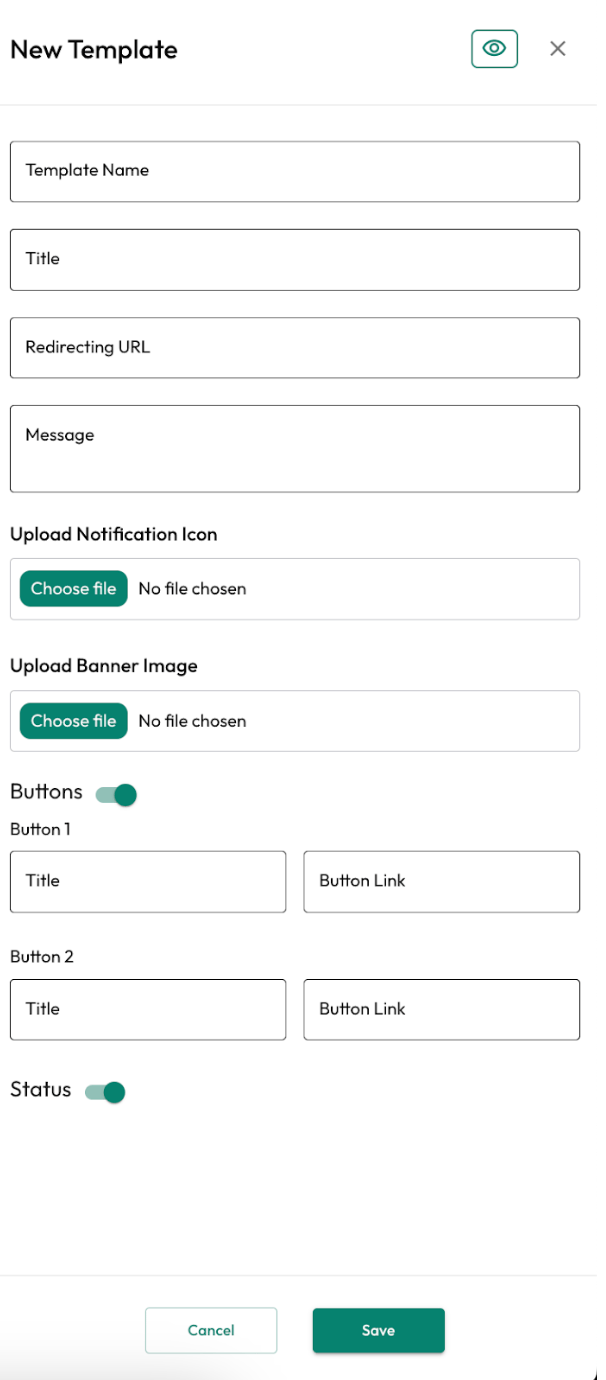
📌 Note:
Make sure the uploaded image size is less than 1 MB.