> ## Documentation Index
> Fetch the complete documentation index at: https://doc.letsnotify.in/llms.txt
> Use this file to discover all available pages before exploring further.
# Connections
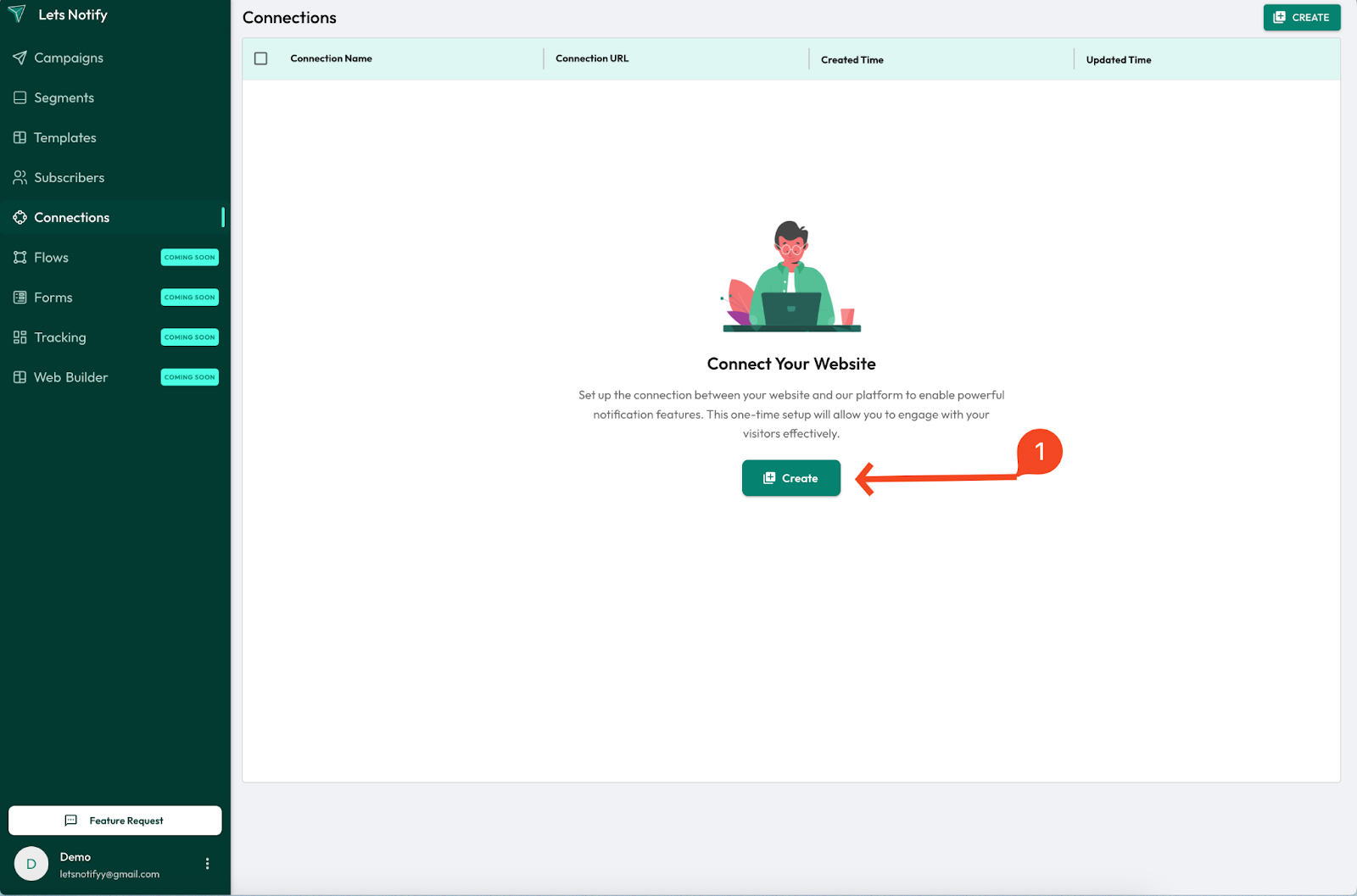
> A Connection lets you integrate Lets Notify with 3rd-party platforms like WordPress, Shopify, Custom React websites, and more 🚀.
# Creating a Connection in Lets Notify
## ✨ What is a Connection?
A **Connection** lets you integrate Lets Notify with 3rd-party platforms like **WordPress**, **Shopify**, **Custom React websites**, and more 🚀.
Let’s walk through how to connect **Lets Notify**
Screenshot
 ## 🛠 Step-by-Step Guide
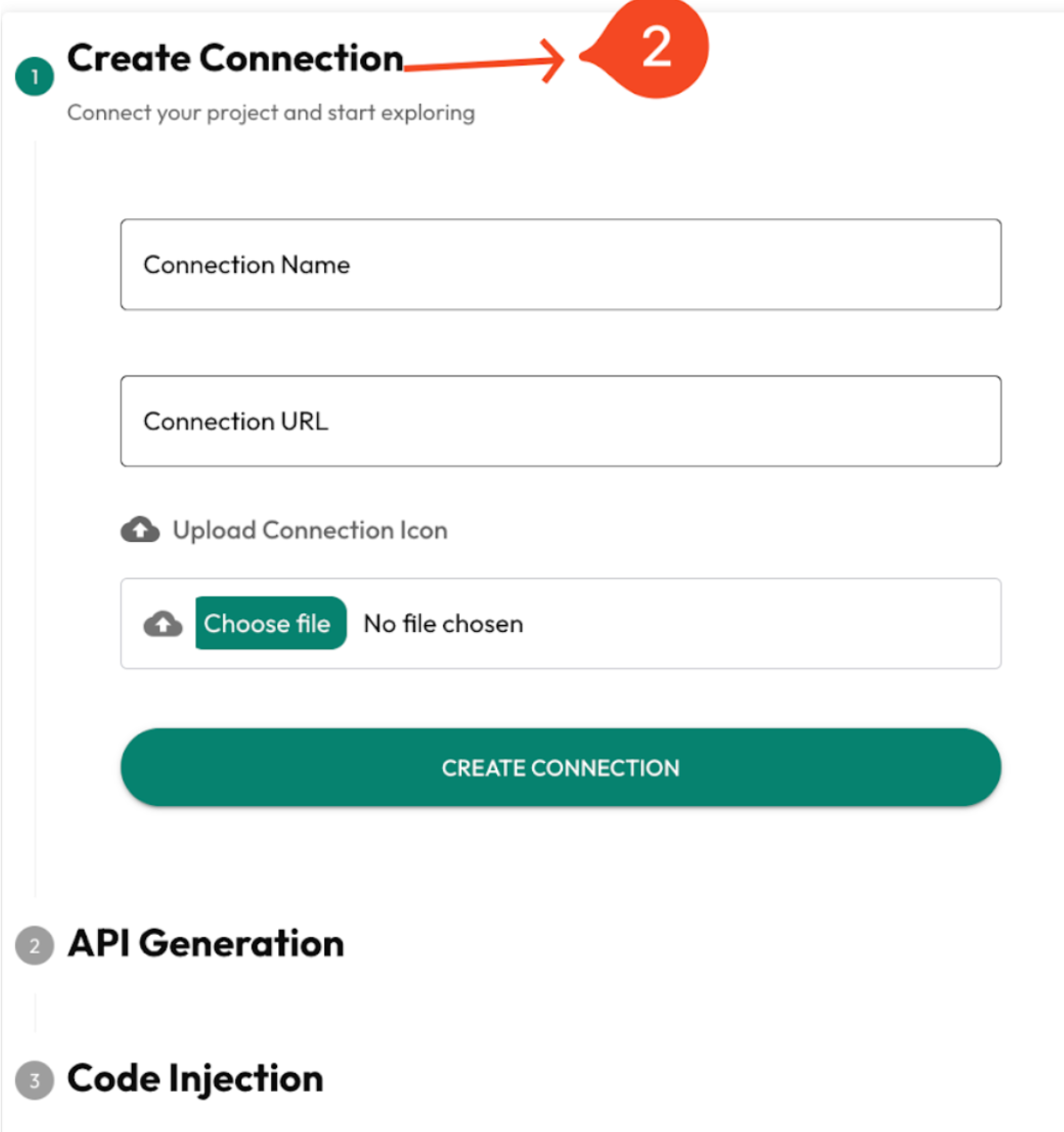
### 🟢 Step 1 of 3 — Basic Details
📝 Enter your site’s details:
* ✍️ **Connection Name** (e.g., *My Blog*)
* 🌐 **URL** (your website link)
* 🖼 **Logo** (upload your brand/site logo)
✅ Once filled, click **Create Connection**.
Screenshot
## 🛠 Step-by-Step Guide
### 🟢 Step 1 of 3 — Basic Details
📝 Enter your site’s details:
* ✍️ **Connection Name** (e.g., *My Blog*)
* 🌐 **URL** (your website link)
* 🖼 **Logo** (upload your brand/site logo)
✅ Once filled, click **Create Connection**.
Screenshot
 ***
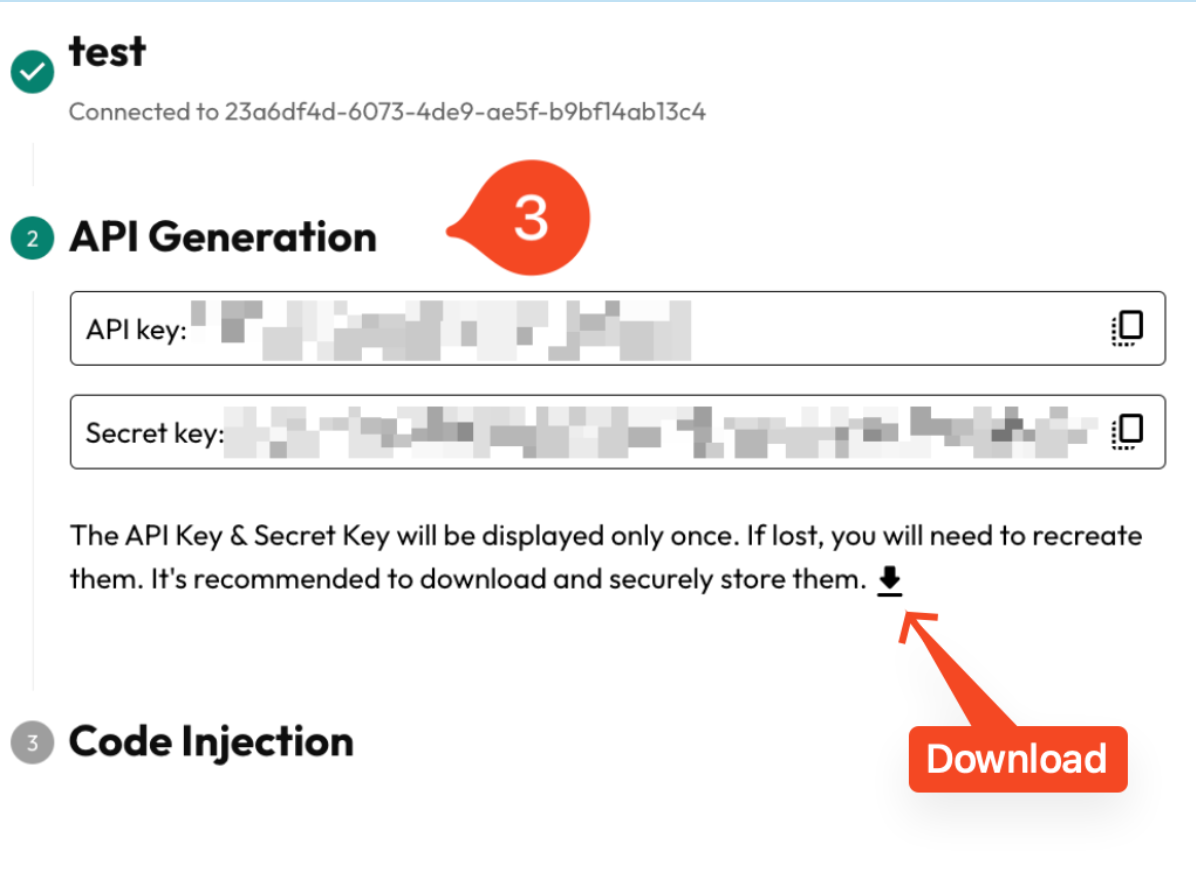
### 🟡 Step 2 of 3 — API Generation
* 🔑 Your **API Key** and **Secret Key** will be generated automatically.\
⚠️ **Important:**
* ⬇️ Download the **API key file** and save it securely.
* 🔒 Keys will **not be regenerated** later.
Screenshot
***
### 🟡 Step 2 of 3 — API Generation
* 🔑 Your **API Key** and **Secret Key** will be generated automatically.\
⚠️ **Important:**
* ⬇️ Download the **API key file** and save it securely.
* 🔒 Keys will **not be regenerated** later.
Screenshot
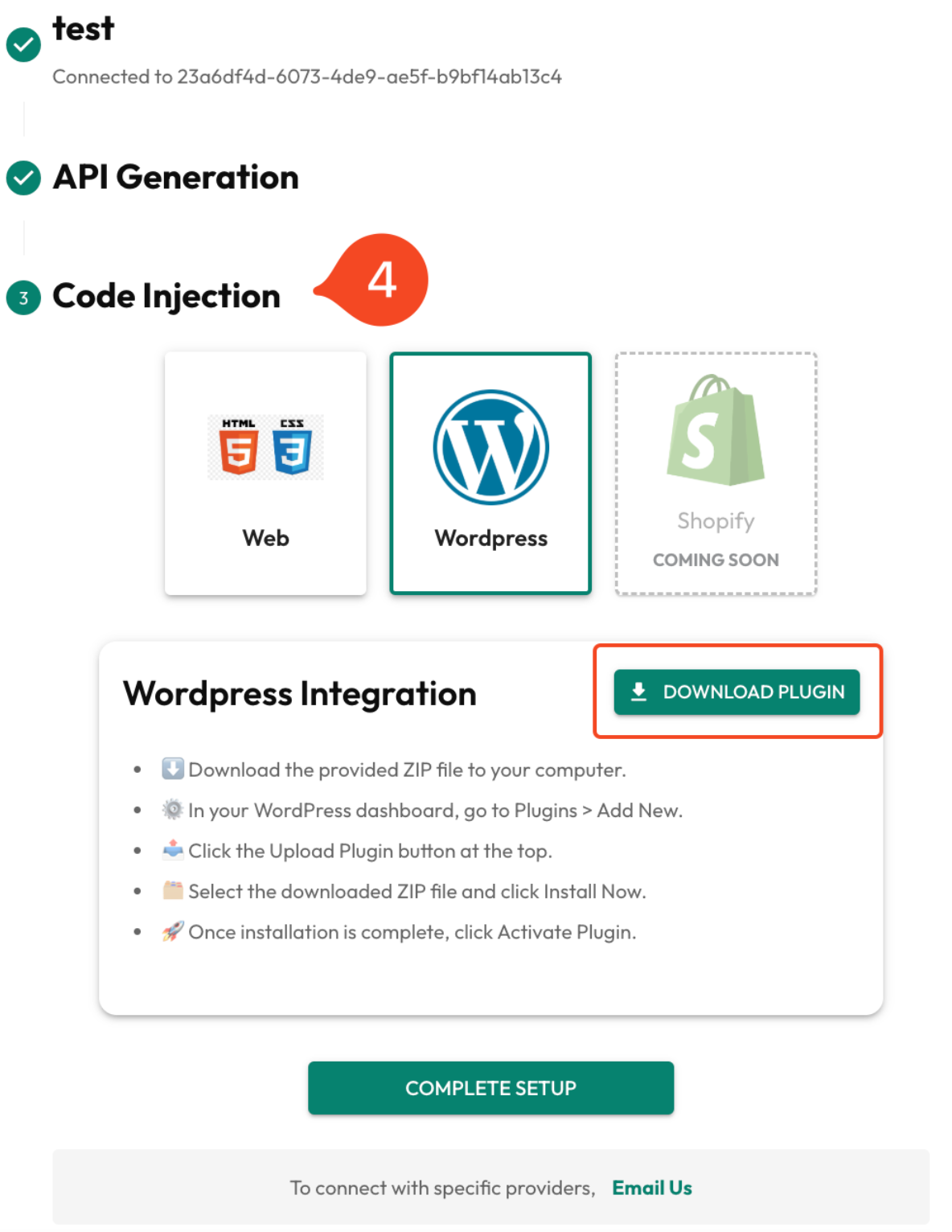
 ### 🔵 Step 3 of 3 — Code Injection (WordPress Setup)
1. ⬇️ **Download** the provided ZIP file.
2. ⚙️ In your **WordPress Dashboard**, go to:\
👉 Plugins > Add New
3. 📤 Click **Upload Plugin** (at the top).
4. 🗂 Select the downloaded **ZIP file** → click **Install Now**.
5. 🚀 After installation, click **Activate Plugin**.
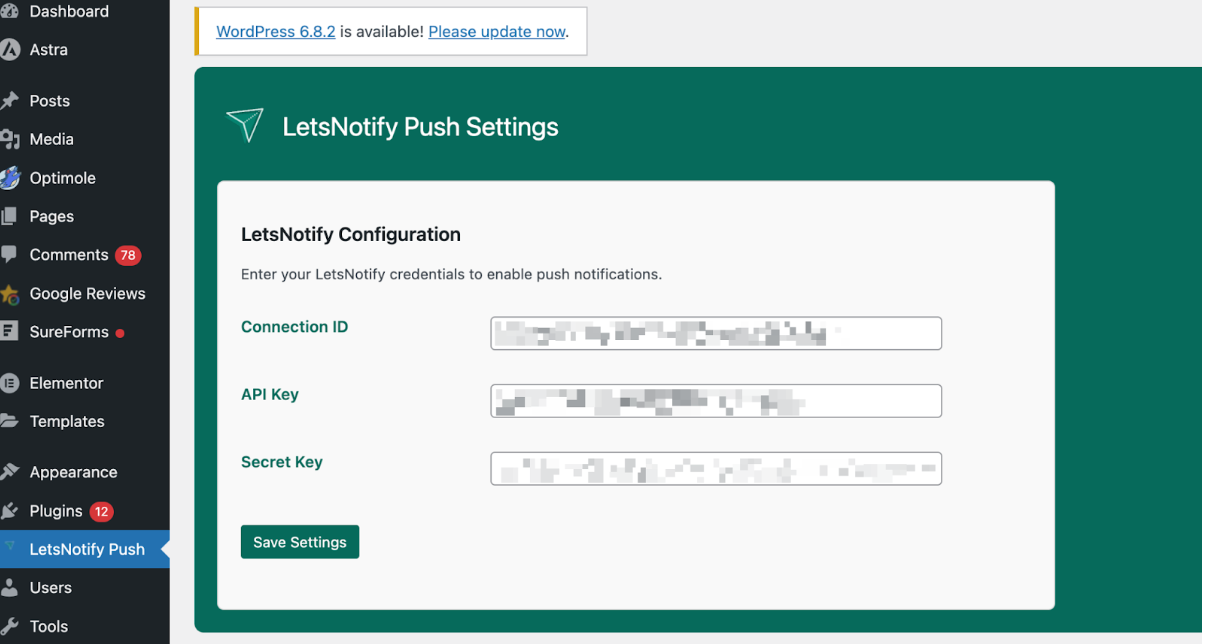
1. Add the Connection ID, API, and Secret Key and hit save.
6. ✅ Go back to Lets Notify and click the **Complete** button.
Screenshot
### 🔵 Step 3 of 3 — Code Injection (WordPress Setup)
1. ⬇️ **Download** the provided ZIP file.
2. ⚙️ In your **WordPress Dashboard**, go to:\
👉 Plugins > Add New
3. 📤 Click **Upload Plugin** (at the top).
4. 🗂 Select the downloaded **ZIP file** → click **Install Now**.
5. 🚀 After installation, click **Activate Plugin**.
1. Add the Connection ID, API, and Secret Key and hit save.
6. ✅ Go back to Lets Notify and click the **Complete** button.
Screenshot
 Wordpress (screenshot)
 ## 🎉 You’re All Set!
Your WordPress site is now successfully connected to **Lets Notify**.\
From here, you can start sending push notifications to your audience instantly 🔔✨.
## Notes
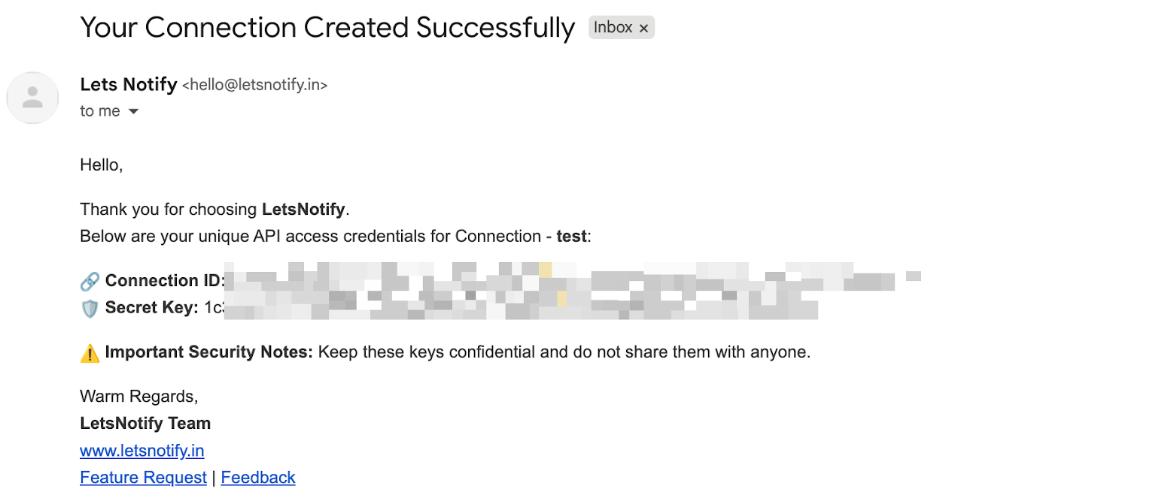
* 📧 **Email Confirmation** – Once your connection is created, all details will be sent to your registered email
Screenshot
## 🎉 You’re All Set!
Your WordPress site is now successfully connected to **Lets Notify**.\
From here, you can start sending push notifications to your audience instantly 🔔✨.
## Notes
* 📧 **Email Confirmation** – Once your connection is created, all details will be sent to your registered email
Screenshot
 * ❌ **Delete & Recreate** – If you’d like to delete an existing connection and create a new one, just drop us an email at [**hello@letsnotify.**](mailto:hello@letsnotify)
* 🌍 Other Integrations – Want to connect with other 3rd-party platforms (besides WordPress, Shopify, Custom React website.Send us an email at [**hello@letsnotify**](mailto:hello@letsnotify) and we’ll help you set it up.
* 👉 Once the connection is created, ensure that both a custom prompt and a welcome template are set up.
* ❌ **Delete & Recreate** – If you’d like to delete an existing connection and create a new one, just drop us an email at [**hello@letsnotify.**](mailto:hello@letsnotify)
* 🌍 Other Integrations – Want to connect with other 3rd-party platforms (besides WordPress, Shopify, Custom React website.Send us an email at [**hello@letsnotify**](mailto:hello@letsnotify) and we’ll help you set it up.
* 👉 Once the connection is created, ensure that both a custom prompt and a welcome template are set up.